
A walk through every function in the tool and three end-to-end use cases — a geological survey compiling an Article 27 database, a municipality beside a legacy site, a reprocessing firm screening for secondary critical raw materials.
Strata is a browser tool. There is no account, no install, no server call that leaves the pilot and goes anywhere except the public Copernicus data archives. If you can open the app, you have the full tool.
Ten illustrative pilot sites, satellite-derived indicators, lifecycle stage, flags, recovery clock, pathways view, CRMA Article 27 CSV export. Light / dark toggle. All values are illustrative until the pipeline runs on real Sentinel-2 scenes.
This guide is in three parts. Part 1 walks through every function. Part 2 takes three real users through the tool end to end. Part 3 is the honest list of what Strata does not do.
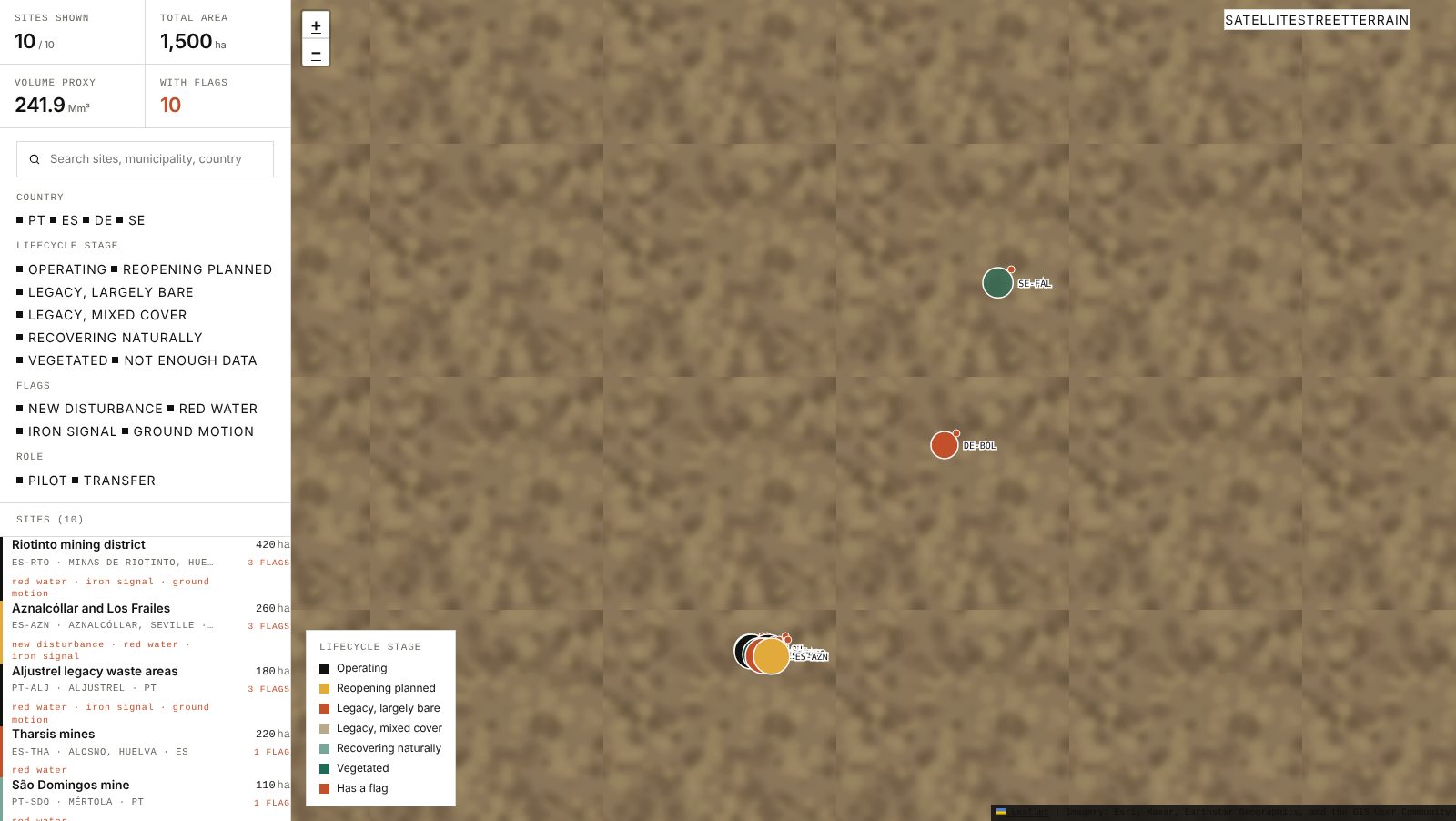
The app opens on the map. The topbar carries seven tabs:
A help icon (the "?" top right) reopens the welcome card at any time. The moon icon toggles the light / dark theme; the choice is remembered per browser.
The map uses real ESRI World Imagery as its satellite base. Three basemaps are available at the top-right of the map (Satellite / Street / Terrain). Every pin is a lifecycle stage:
Pins are sized by waste footprint, so a 420 ha site reads larger than a 35 ha one at the same zoom. A small orange dot inside a pin means the site has at least one flag.
Site polygons overlay the satellite imagery under each pin, so the heap shape reads against the ground even without clicking in.
Left column at the top: four facts for whatever subset of sites is in view (sites shown, total area, DEM volume proxy, sites with flags). Below that, the filters: search by site name, municipality or country; country chips (PT, ES, DE, SE); lifecycle stage chips; flag chips; role (pilot vs. transfer). Below the filters, the full site list, where clicking a row opens the same card you get from clicking a pin.
Phones. The map takes the full screen. The left column collapses to a bottom sheet with three states — a peek strip, a half-screen filter + list, and a full-screen take-over. The handle at the top of the sheet cycles between them; the sheet never covers the whole map at the peek state.
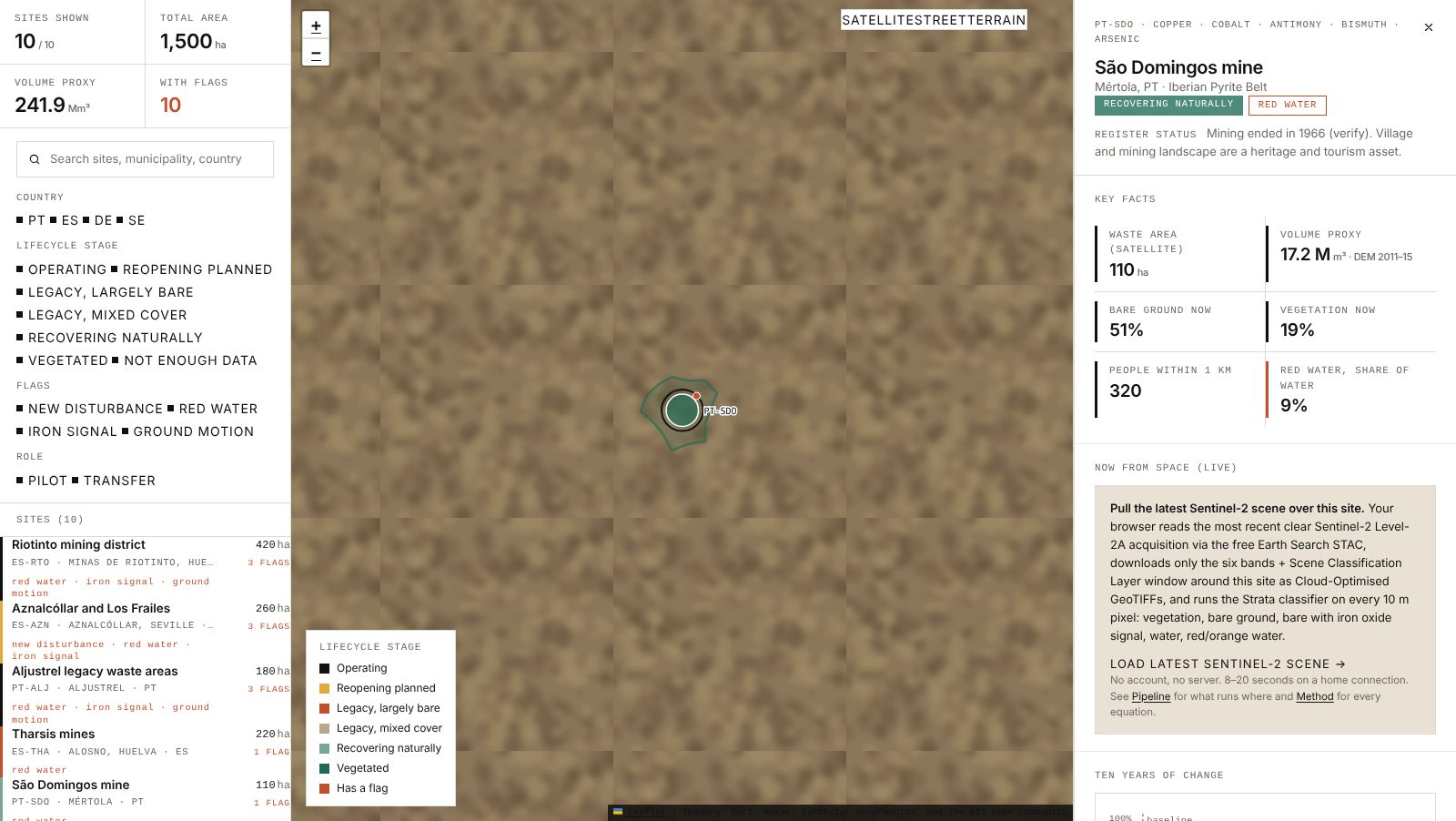
Click a pin or a row in the list and the right column opens the site's card. Eight sections, always in the same order:
The close button at the top of the card returns you to the map with your filters intact.
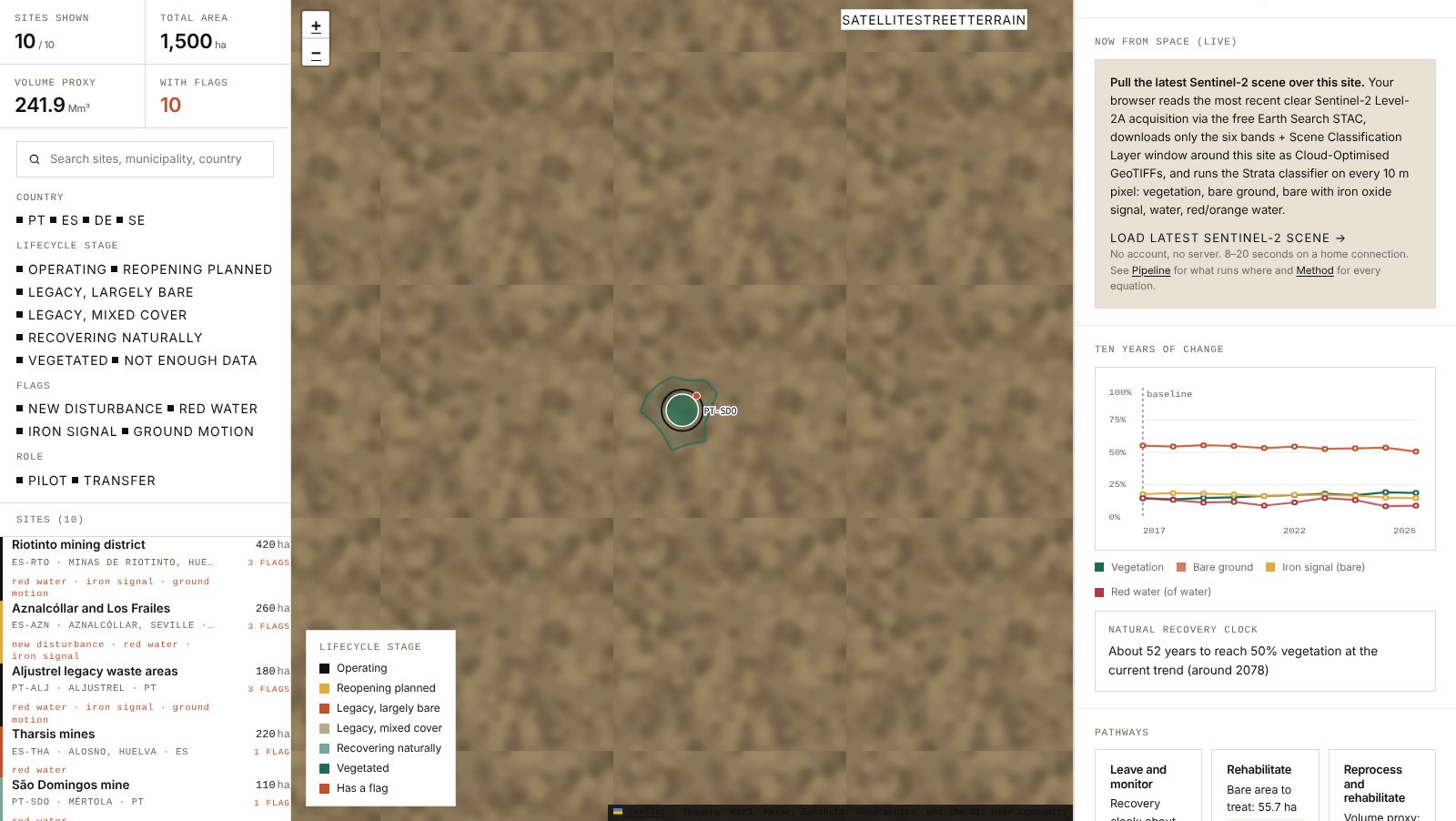
The Now-from-space panel is the one place where Strata actually goes out to Copernicus at the moment you click. The sequence it runs, in your browser:
Nothing leaves your browser, no account is needed, 8 to 20 seconds on a home connection. If the request fails (cloudy fortnight, Earth Search outage) the panel says so and offers the archive date it last found.
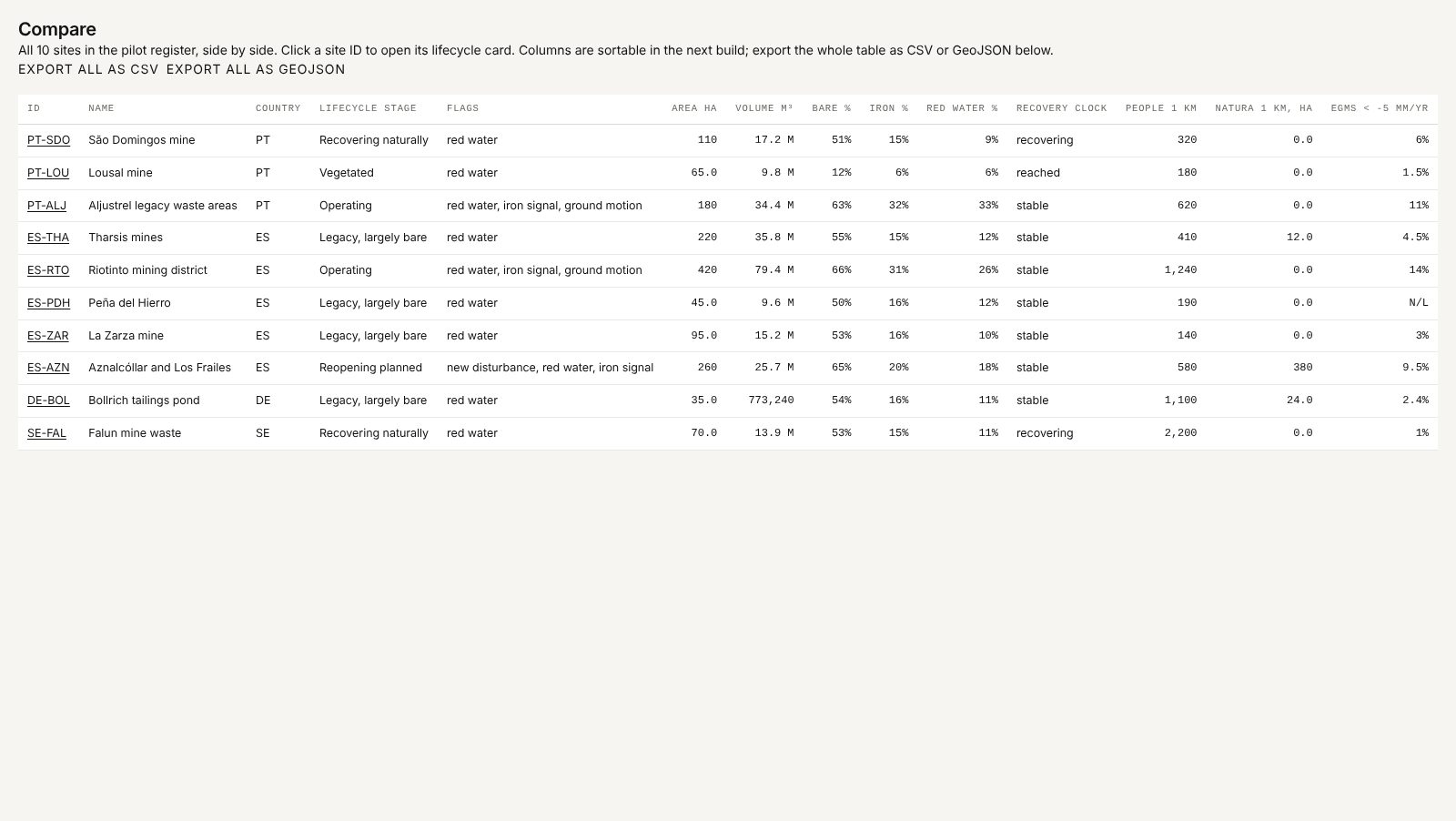
The Compare tab lays every site in one sortable table. Columns, in order: ID, name, country, lifecycle stage, flags, area (ha), DEM volume (m³), bare %, iron %, red water %, recovery clock status, people within 1 km, Natura 2000 overlap (ha within 1 km), EGMS subsidence share faster than −5 mm/yr. Click a site ID to open its card without leaving the view.
The two buttons at the top of the view produce the full-register exports:
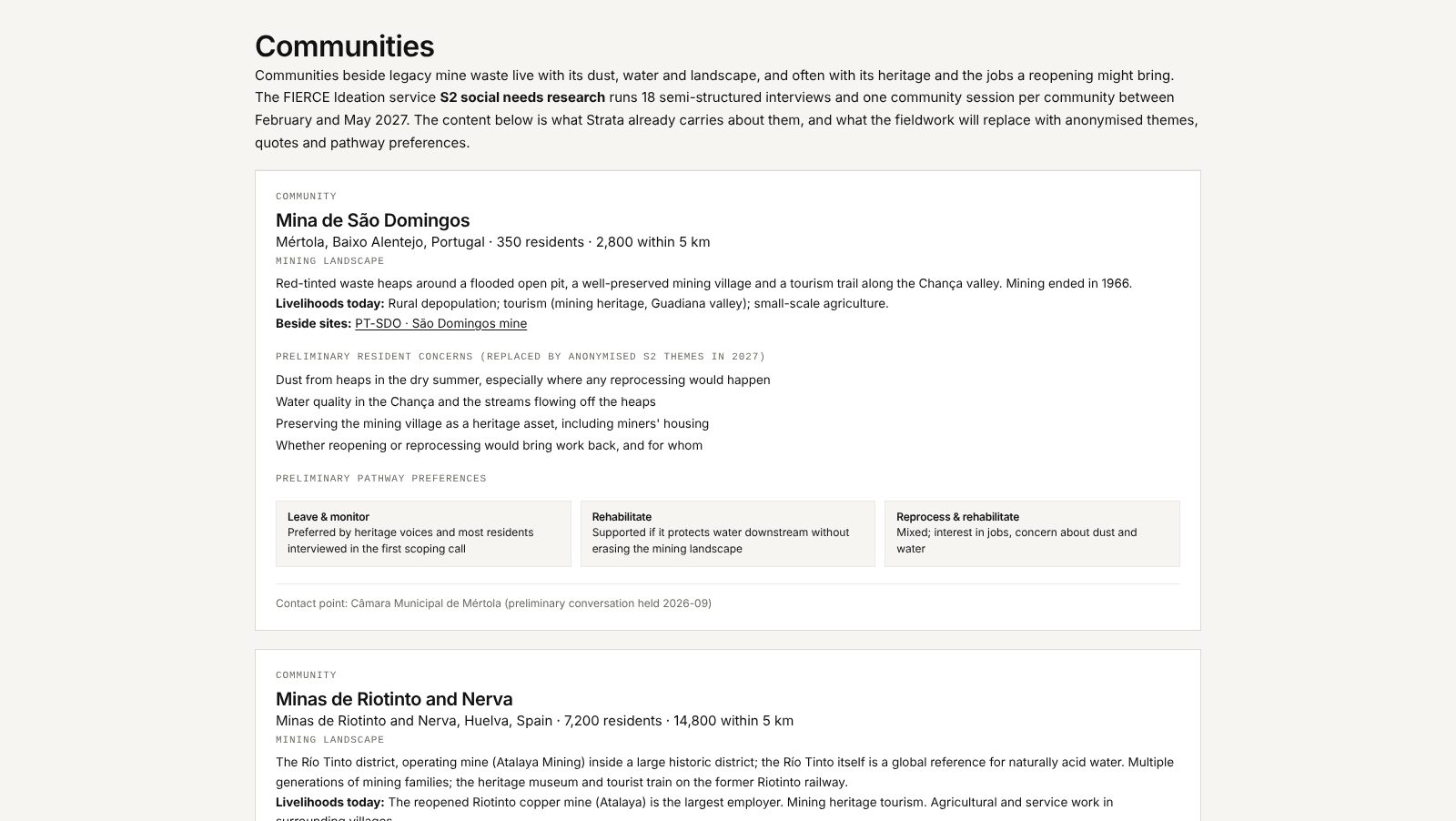
Three communities, each on its own card: the mining landscape, livelihoods today, preliminary resident concerns, three pathway-preference cards (leave / rehabilitate / reprocess), the sites each community sits beside, and the municipal contact point.
Everything on this tab is preliminary by design. The headline reminder on the tab says so: the pilot social-needs fieldwork runs 18 semi-structured interviews and one community session per community between February and May 2027, and those anonymised themes replace what you see today.
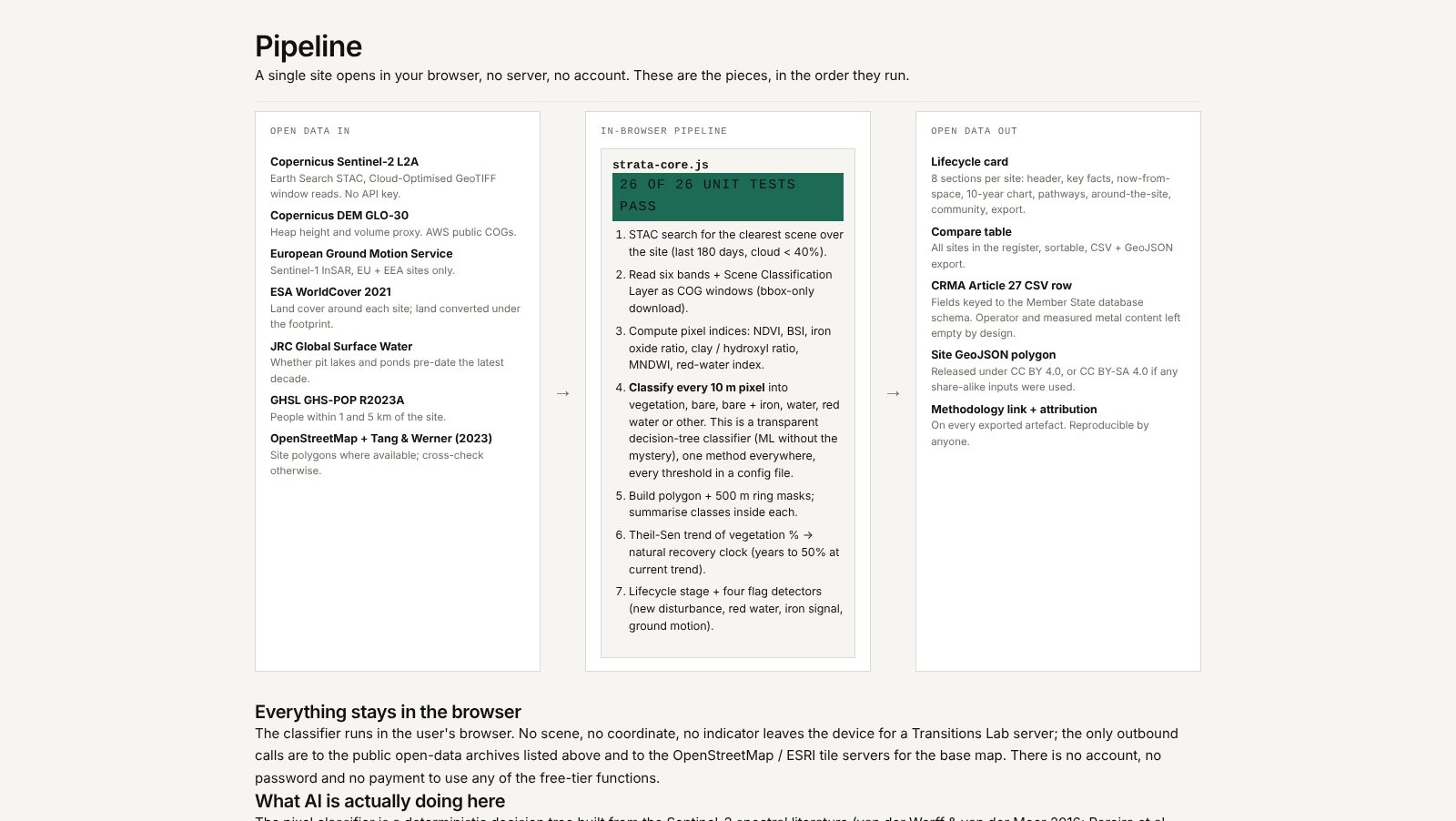
The Pipeline view is the data map of the tool. The left column lists every input and its licence. The centre names the in-browser classifier — strata-core.js, where the self-tests report 26 of 26 unit tests pass on load — and lists the steps it runs. The right column lists what comes out: the lifecycle card you see, the CSV row keyed to the CRMA Article 27 fields, the GeoJSON polygon, and the methodology attribution that ships with every export.
Three rules worth repeating:
Every Member State has to register its closed mine waste sites under Article 27 of the Critical Raw Materials Act. A survey analyst sitting with that register has a problem Strata is built for: for most historic sites there is no modern measurement at all.
Step 1. Open the app. Jump straight to the Compare view. Scan the register as it stands: ten pilot sites, lifecycle stages at a glance, flag pattern per column.
Step 2. For each site that lacks a current measurement, open the card. Confirm the waste area reads sensibly against the ground. Press Load latest Sentinel-2 scene. The three canvases will tell you within seconds whether the site is bare, re-vegetating, or already covered.
Step 3. For a site with a reopening planned register status, the Pathways card lays out what Leave, Rehabilitate and Reprocess would entail, so the register entry can carry the CRM-candidate rationale alongside the measured properties.
Step 4. Click Export CSV. One row keyed to the Article 27 schema, with operator and measured content left empty, DEM volume labelled as a 2011–15 Copernicus proxy, CRM candidates coming from deposit type (never from measured content).
Step 5. Repeat for the next site. Export all as CSV at the end if you want the whole register in one file. Attribution ships inside the exports.
What Strata will not do. It will not sign the register. The analyst does. Strata provides the evidence base and the trail from pixel to row.
A mayor or a municipal technician wants to understand what sits beside their town: how much of it, in what state, with how many people how close, and whether anything is happening on it.
Step 1. Open the app. Search for the municipality name in the top-left search box (e.g. Mértola). The site list filters to the ones in that municipality; the matching pins pulse on the map.
Step 2. Open the site card. The six key facts at the top are the ones a council agenda needs: how big (ha), how massive (Mm³), how exposed (bare %), how vegetated (veg %), how close to residents (people within 1 km), how coloured the water is (red water %).
Step 3. Open the Communities tab. If your community is one of the three pilots, the preliminary concerns and the pathway preferences read directly against what the satellite shows. If not, use it as a template for the questions the technician can ask residents.
Step 4. Open the Ten-year change panel. The natural recovery clock tells the council whether the site is recovering on its own, has stalled, or is going backwards — in years, not percentages. This is often the first time any such figure has existed for the site.
Step 5. Export CSV or GeoJSON to bring the facts into a council agenda, a planning submission, or a conversation with the regional authority.
What Strata will not do. It will not tell the council whether a planned reopening is in the public interest. That is a political and legal judgement. Strata is the honest baseline it rests on.
A pyro- or hydro-metallurgical operator with spare capacity wants to know which legacy heaps in a region are plausible feedstocks: large enough, iron-signal-bearing (as a crude proxy for oxidised sulphide waste), with ground stability history, and not sitting on top of a Natura 2000 habitat.
Step 1. Open the Compare view. Sort by area descending. Shortlist by minimum area.
Step 2. Filter the map by the iron_signal flag. The pins that drop out are the ones that do not show the iron-oxide signal on the satellite; the ones that stay are the ones worth a closer look.
Step 3. Open each shortlisted site. Check:
Step 4. Click Load latest Sentinel-2 scene. The pixel classes confirm whether the iron signal is a thin crust or a dominant surface — the former is a few years' feedstock, the latter is a decade.
Step 5. Export each shortlisted site's row and polygon. Hand the file to a hydro-/pyro- processing engineer with the honest caveat that measured metal content is empty by design.
What Strata will not do. It will not tell you grade. It will not quote a reprocessing cost. It will tell you which sites are large enough and surface-chemistry-plausible enough to spend the first field day on, which is the question that costs most to answer without a tool.
A fair guide includes the stop signs.
If the question needs a measured grade, a legal determination, or a sub-10 m feature, Strata is not the tool. For the question "what is actually on these heaps today, how are they changing, and what would three different plans mean?", it is.
/strata-demo#site-pt-sdo opens São Domingos directly. Replace the ID with any of PT-SDO, PT-LOU, PT-ALJ, ES-THA, ES-RTO, ES-PDH, ES-ZAR, ES-AZN, DE-BOL, SE-FAL./strata-demo#compare, #communities, #pipeline, #method, #data, #about.If this reads close to a decision you are weighing, we would like to hear about it. A short note is enough to start.
The Lab is an independent research team, not an advocacy organisation. We do not campaign, endorse products, or accept commissions where a finding is expected in advance. Where a partner's own theory of change is what needs testing, that is a legitimate engagement, and the Lab tests it honestly.